Monday, September 23, 2024

Create 'myuser' Linux user to run your dedicated software

sudo apt update -y && sudo apt upgrade -y
sudo adduser myuser

Note the password you used for defining myuser user

(reference)

Give myuser 'sudo' permissions

sudo visudo

Add the below line right after the line with 'root' definitions

myuserALL=(ALL) NOPASSWD:ALL

Add 'myuser' as a tty user so it can run 'screen' with no issues:

sudo vi /etc/group

Modify

tty:x:5:

to look

tty:x:5:
myuser

Create folder for myuser software & logs

su - myuser
sudo mkdir /opt/myuser
sudo mkdir /opt/myuser/logs
su - myuser
sudo mkdir /opt/myuser/logs
sudo mkdir /opt/myuser &&

sudo chown -R myuser:myuser/opt/myuser

Allow user 'myuser' to remotly access the AMI via SSH

cd ~    
mkdir .ssh
chmod 700 .ssh
touch .ssh/authorized_keys
chmod 600 .ssh/authorized_keys
vi .ssh/authorized_keys

Export public key from a key-pair:

On Windows:

Open PuttyGen -> Conversions ->Import Key and import your ".pem" file. Right-click in the UI field labeled "Public key for pasting..." -> Select All ->Copy

On MAC/Linux use command:

ssh-keygen -y -f <.pem-file>

Note: the file should start from ssh-rsa and should end with imported-openssh-key

Paste content (public key) into vi editor, save and close the file.

Extend the user limit: add the below two lines

myuser    hard    nofile      500000
myuser    soft    nofile      500000

to sudo vi /etc/security/limits.conf

Check that you can SSH to the instance with your new user myuser.

Next, reboot and remove the original user - either 'ubuntu' or 'ec2-user'

sudo deluser ubuntu

Optional:

Add a cron job to clean up any our log file older than 14 days

crontab -e

if asked to select an editor for crontab select option '3' - vi.

Add to the crontab file

# Every 4 hours try removing any of our log files older than 14 days back
0 */4 * * * find /opt/myuser/logs -name '*.log.*' -mtime +2 -print -delete

save file and exit the editor.

Saturday, August 24, 2024

AWS EC2 EBS disks operations


Increase or replace an EBS disk

  1. Make a snapshot / backup copy

  2. Stop the service which uses this disk (e.g. sudo service mysql stop)

  3. Unmount the disk sudo umount /dev/xvdb

  4. Via AWS console, "detach Volume"

  5. Either "Modify Volume" adding some more space, or "Create" a new one with required size

  6. "Attach" volume back to the AMI via console

  7. Edit vi /etc/fstab to allow mount / permanent mount, adding a line like

/dev/nvme1n1  /home/adjesty/mnt auto defaults,noatime,nofail 0 2

7a. For a new volume, create the file system then mount & change the ownership / permissions from 'root'

sudo mkfs.ext4 /dev/xvdg

If there is a need to change the default amount of inodes** (Crawlers case when we create zillions of very small files) then use "-i <bytes-per-node>" flag as per reference

sudo mkfs.ext4 -i 1800 /dev/xvdg

the above will allocate 1800 bytes per an inode, so a 1GB disk will get 596,523 inodes (assuming each file is less than 1,800 bytes)

sudo mount /dev/xvdg
sudo chown -R mysql:mysql /db_tmp

7b. For the increased volume, mount & extend the file system

First, check that the device is in /etc/fstab, e.g.:

/dev/xvdg /db_data auto defaults,noatime,nofail 0 2

Next, mount it & then resize

sudo mount /dev/xvdg
sudo resize2fs /dev/xvdg

check with df -h that you have got the designed size:

Filesystem      Size  Used Avail Use% Mounted on
udev            216M     0  216M   0% /dev
tmpfs            46M  1.9M   44M   5% /run
/dev/nvme0n1p1  9.7G  7.6G  2.1G  79% /
tmpfs           230M     0  230M   0% /dev/shm
tmpfs           5.0M     0  5.0M   0% /run/lock
tmpfs           230M     0  230M   0% /sys/fs/cgroup
/dev/loop2       33M   33M     0 100% /snap/amazon-ssm-agent/2996
/dev/loop3       56M   56M     0 100% /snap/core18/2066
/dev/loop1       34M   34M     0 100% /snap/amazon-ssm-agent/3552
/dev/loop5       99M   99M     0 100% /snap/core/11081
/dev/loop6       56M   56M     0 100% /snap/core18/2074
/dev/loop4      100M  100M     0 100% /snap/core/11316
tmpfs            46M     0   46M   0% /run/user/1001
/dev/nvme1n1    492G   14G  458G   3% /home/adjesty/mnt

AWS instructions are here

For machines that already come with disks:

adjesty@ip-172-31-15-45:~$ lsblk
NAME        MAJ:MIN RM   SIZE RO TYPE MOUNTPOINT
loop0         7:0    0    89M  1 loop /snap/core/7713
loop1         7:1    0    18M  1 loop /snap/amazon-ssm-agent/1480
loop3         7:3    0    18M  1 loop /snap/amazon-ssm-agent/1455
loop4         7:4    0  89.1M  1 loop /snap/core/8039
nvme0n1     259:0    0 838.2G  0 disk /qt
nvme1n1     259:1    0    10G  0 disk 
└─nvme1n1p1 259:2    0    10G  0 part /
sudo mkfs.ext4 /dev/nvme0n1
sudo mkdir /ext
sudo mount /dev/nvme0n1 /ext

Tuesday, August 29, 2023

Solving Wordpress Critical Error on WP Admin's Login

If you get a "Critical Error" white screen when accessing your WP admin, look into the server's logs. Some hosting companies and software like CPanel make accessing logs quite an easy task.

My logs showed the following PHP error:

 [Tue Aug 29 11:53:45.667499 2023] [proxy_fcgi:error] [pid 592:tid 139914188318464] [client 1.2.3.4:0] AH01071: Got error 'PHP message: PHP Fatal error: Uncaught Error: Class "Elementor\\Core\\Schemes\\Color" not found in /home/user............quire_once('/home/user...')\n#6 /home/user/public_html/wp-admin/upgrade.php(18): require('/home/user...')\n#7 {main}\n thrown in /home/user...', referer: https://www.my.site/wp-admin/ 

The biggest challenge was to find what exactly is the path to the file which refers this "Elementor\\Core\\Schemes\\Color"  class. It appeared to be in /public_html/wp-content/mu-plugins/typography.php

I commented out all PHP content and tried to login again. This time there were no error and the WP offered me to complete the DB upgrade. Once the "Upgrade" button was pressed I instantly got the WP Dashboard back. The only thing that was left was to uncomment the code in /public_html/wp-content/mu-plugins/typography.php

Monday, June 05, 2023

Speeding up Ubuntu guest (23.04) on Windows 11 Home host with VirtualBox

I run VirtualBox v7.0.8 on an updated Windows 11 Home. 

Ubuntu 22.04 simply declined to work once installed on a VM. Even the "guest Additions" CD did not run automatically. Once Guest Addition ran manually, the VM still refused to open reasonably quickly. I tried installing 22.04 twice and then switched to the next in line.

Ubuntu 23.04 simply worked out of the box, but it had issues supporting a 4K monitor. Trying to enlarge the desktop to the full size of a 4K monitor caused blackouts. It was solved by adding more Display memory and increasing general VM RAM. 

Another glitch was that moving a window over a desktop left visual traces - copies of the same window that were living in the background forever. This issue was gone by switching "3D Acceleration" off.


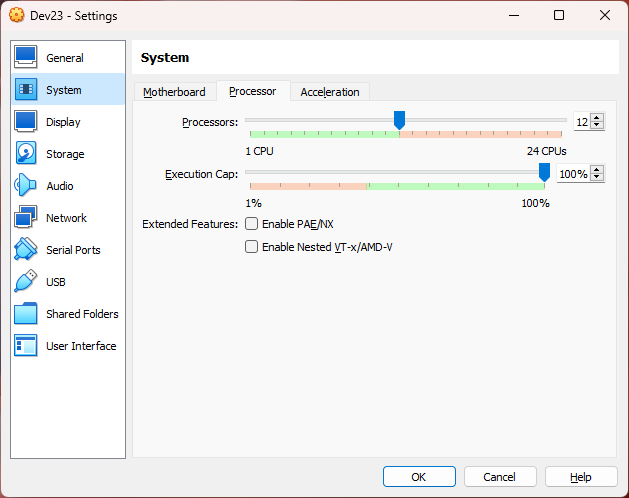
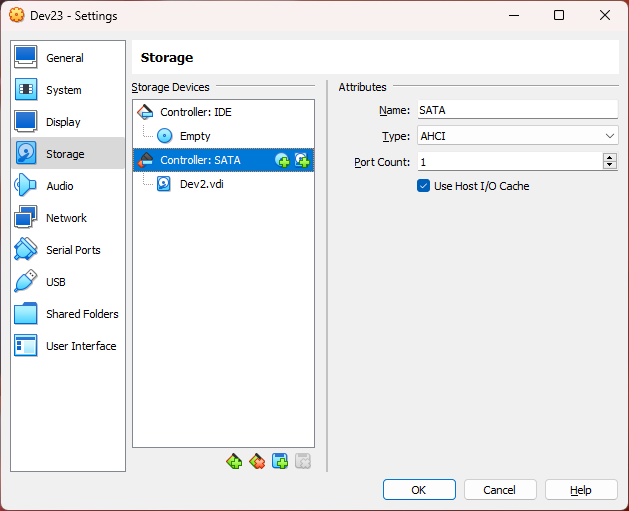
The VBox's VM settings look this way:


KVM Acceleration is selected for Linux guest


Display needs maximum RAM while "3D Acceleration" is better kept off


SATA Controller uses I/O Cache


And the disk is marked as SSD


And yet, switching off "Virtual Machine Platform" feature in Control Panel -> Programs and Features + Restart probably was one single game changer, speeding up the VM a few times.


Tuesday, September 27, 2022

AWS SAM fails on Windows 11 Home while trying to create an AWS Serverless project in PyCharm with AWS Toolkit

PyCharm shows an exception like this: 

java.lang.RuntimeException: Could not execute `sam init`!: [Cloning from https://github.com/aws/aws-sam-cli-app-templates (process may take a moment), Error: Unstable state when updating repo. Check that you have permissions to create/delete files in C:\Users\user\AppData\Roaming\AWS SAM directory or file an issue at https://github.com/aws/aws-sam-cli/issues] at software.aws.toolkits.jetbrains.services.lambda.wizard.SamInitRunner.execute$lambda-1(SamInitRunner.kt:55) 


This happens because the PATH variable on Windows 11 is limited to 260 chars (no idea why).

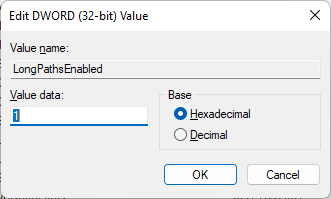
The fix is easy: Open Registry Editor (type "regedit" in Windows Search box)

and go to HKEY_LOCAL_MACHINE\SYSTEM\CurrentControlSet\Control\FileSystem


then change the value for "LongPathsEnabled" from 0 to 1.


You need a Docker on your computer to run a Local SAM build. Install it and run Docker Desktop at least once to accept T&C's and to start the docker service.

Unfortunately, the latest v4.12.0 Docker for Windows  (as of 2022-09-27) does not work well with the latest AWS SAM 1.57.0. 
AWS SAM "Local" build throughs an error. Downgrading to Docker 4.11.1 solves this issue as discussed here.

Python 3.9 is the latest version currently supported by AWS Lambda. Assuming this is what you have selected for your AWS Lambda project, you need to make sure that SAM can find in your path python 3.9 executable' folder. SAM refuses to continue if it knows the path to e.g. python 3.10 but not to python 3.9.

Monday, August 29, 2022

Runing Ubuntu with full GUI on Windows 10 WSL

 While I did not find the way to run a full-blown ubuntu-desktop I ended up with a nice lightweight LXDE Ubuntu GUI.


If Ubuntu app is not already installed on your computer download it from Microsoft Store.

Run the app and type in the terminal:

sudo apt update

sudo apt upgrade -y

sudo apt install lxde


Now you have to install X server for Windows to make it work. Install VcXsrv freeware.

Set DISPLAY and LIBGL_ALWAYS_INDIRECT values in your Ubuntu terminal. You can later add them both to ~/.bashrc to make this change permanent:

export DISPLAY="$(grep nameserver /etc/resolv.conf | sed 's/nameserver //'):0"

export LIBGL_ALWAYS_INDIRECT=1


DISPLAY=:0 is not enough! (here is some more info) Ubuntu app and Windows have different IP addresses so we have to specify the correct IP for the X-server.


Run X-server on Windows: VcSrv installs as XLaunch. Select "One Large Window" and "Display": 0.


Keep the default "No client"


IMPORTANT: Select "Disable access control" checkbox


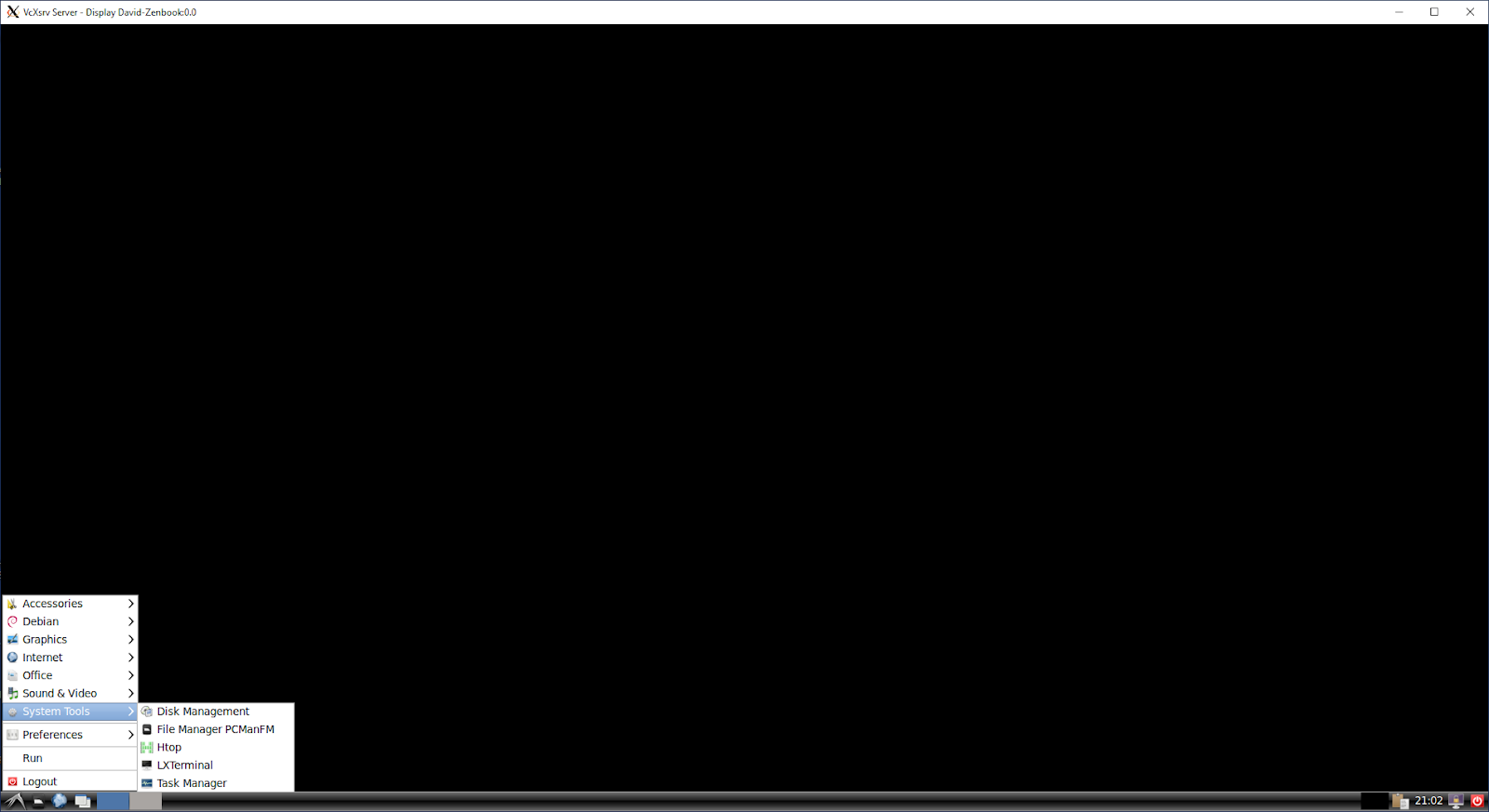
Click Next and then Finish buttons. You should get a blank window. Now in your Ubuntu terminal run:

startlxde &


You will get a "No session" dialog. It is fine, just hit "OK" button. And voila! - the full desktop appears


You can now run a terminal, Firefox, and install any Ubuntu app you want.


Thursday, June 03, 2021

Define Cloudflare DNS for a AWS S3 bucket

 It's quite a straightforward procedure if you know what to do.

1. Bucket name should exactly match your subdomain name, e.g. mycdn.mysite.com

2. Subdomains should be in one level. Buckets named like part1.mycdn.mysite.com won't work via DNS

3. Define a bucket policy granting Cloudflare servers access. See the JSON here, replace 'www.example.com' with your bucket name (mycdn.mysite.com)

4. Login to Cloudflare and in DNS section add a CNAME record:

mycdn.mysite.com => mycdn.mysite.com.s3.amazonaws.com


That's it!


Tuesday, April 28, 2020

Configure a TP-LINK router as a bridge / access point / wifi extender with a WiFi connection (not cable-connected to the main Internet router)

1. Do not touch the main router. There is nothing to configure there.

2. Cable-connect your TP-LINK router (Ethernet) to your computer and go to it's UI by typing the IP, typically 192.168.1.1 or 192.168.0.1

3. Go to Network -> LAN Settings. Change IP address to an IP which is in the LAN segment from your main router, but not in its DHCP range. E.g. if the main router / default Gateway IP is 192.168.1.1 and the DHCP range is 192.168.1.100 - 192.168.1.199 then any IP between 192.168.1.2-192.168.1.99 will do.

4. Disable DHCP server.

5. Click SAVE

6. The router is supposed to reboot. Go to DHCP server and double verify that it is disabled.

7. Go to Wireless -> Basic Settings (or whatever it is called in your model) and switch on "enable WDS". You might need to define specific channel on main router, e.g. 11 and match it on the bridging router by selecting Channel = 11. The same is correct for the Channel Width. Name your WiFi in the way you want, e.g. "my_home_NW_EXT"

8. Hit Scan / Survey button to get the list of available WiFi networks. Select the network broadcasted by your main router and hit "Connect". Enter the password for that network as defined in the main router. Note that it is NOT the password to access the new WiFi network you are defining: "my_home_NW_EXT".

9. GO to Wireless -> Wireless Security where you define the security for your new network "my_home_NW_EXT" and define the password you will use while accessing thi snetwork it could be the same password as for teh bridged network or another one.

10. Reboot the bridged router. Cross your fingers, it should work now.

Wednesday, July 06, 2016

Recovering AWS AMI with lost key pair

If you lost a key pair for the running AMI or an image here is the sequence of steps to recover (ubuntu 14.04 style):
1. For the image, run an instance IN THE SAME AZ where you need your new AMI. If you got a running AMI in another AZ make an image and start the new AMI from that in the AZ where you need your new instance.

2. Once you got a running old AMI in the AZ you need, stop it (do NOT Terminate).

3. Detach volume of the old AMI using AWS Console

4. Start a clean new AMI with the key pair you got.

5. Using AWS Console, attach the detached old AMI volume to the new AMI. AWS will tell you it is mounted at /dev/sdf - NOT SURE IT IS THERE

6. SSH to your new AMI where you attached the old volume


#become a root
sudo -i

#find out where the old volume is attached
sudo lsblk --output NAME,TYPE,SIZE,FSTYPE,MOUNTPOINT,LABEL

#it should give you something like
NAME    TYPE SIZE FSTYPE MOUNTPOINT LABEL
xvda    disk   8G                  
└─xvda1 part   8G ext4   /          cloudimg-rootfs
xvdf    disk  14G                  
└─xvdf1 part  14G ext4              cloudimg-rootfs


#create mount point
mkdir /mnt/recovery

#mount the volume - note it is /dev/xvdf1 (with "1" at the end)
mount /dev/xvdf1 /mnt/recovery -t ext4

#copy SSH keys to the old volume. NOTE you will need 'ec2-user' instead of 'ubuntu' in the below pathes if you do it for other OS-s
cat /home/ubuntu/.ssh/authorized_keys > /mnt/recovery/home/ubuntu/.ssh/authorized_keys

#unmount the volume
umount /mnt/recovery/

7. Attach the old volume back to stopped old AMI

8. Now you can kill the new instance and start the old one. You should be able to SSH it with your key pair

Alternatively to steps (7)-(8) you can create a snapshot from the old volume with new key pair, and then create an image from that snapshot. Next, launch a new AMI from that image.

References:
[1]

Wednesday, June 29, 2016

Ubuntu software update can not run due to insufficient disk space

This one-liner does the clean up:
dpkg --list | grep linux-image | awk '{ print $2 }' | sort -V | sed -n '/'`uname -r`'/q;p' | xargs sudo apt-get -y purge

(source)

Tuesday, May 24, 2016

Make Mozilla Thunderbird to properly work with your Google Calendar

Thunderbird uses it's own default "Home" calendar so you need to re-configure it if you want to use your Google Calndar via Lightning plugin.
  1. Manually copy upcoming event from Home calendar to Google calendar (e.g. by creating new events at http://calendar.google.com).
  2. Remove "Home" calendar: "Events and Tasks" -> Unsubscribe selected Calendar -> Home
  3. Download & install "Provider for Google Calendar": https://addons.mozilla.org/en-US/thunderbird/addon/provider-for-google-calendar/, restart Thunderbird
  4. Add your Google calendar: File->New->Calendar->Network Calendar->Google CalendarEnter your email address and then,in the Google authorization window, provide your Google account credentials .
  5.  Last but not least: allow the calendar to accept incoming events and send notifications.Options->Advanced->Config EditorType in the search bar: calendar.google.enableEmailInvitations and click on item to make it 'true'

Sunday, November 29, 2015

Setup a swap file for Linux / Ubuntu

Set up a swap file of 2GB in the "/" folder and attach swap to it

sudo fallocate -l 2G /swapfile
sudo chmod 600 /swapfile
sudo mkswap /swapfile
sudo swapon /swapfile

Test:

sudo swapon -s
free -m

Make your changes permanent:

sudo vi /etc/fstab

Add the following line:

/swapfile   none    swap    sw    0   0

save & close the file.

Twek swapinness (0-100). If near to 0 the kernel  will use swap only it is absolutely necessary.  Values near to 100 mean use more swap and use less RAM.
To see swappiness:
 
cat /proc/sys/vm/swappiness
 
and to change it
 
sudo vi /etc/sysctl.conf 
 
and add at the end of the file

vm.swappiness=10
 
(source) 

Saturday, November 21, 2015

s3cmd for Ubuntu

Installing s3cmd on Ubuntu is really easy:

sudo apt-get install s3cmd
 
and then

s3cmd --configure


Note the utility saves .s3cfg file in your home directory (if not requested differently), so for another user you will have to re-configure it or copy your ~/.s3cfg file and modify it, or run

s3cmd -c ...

Trying it out:

echo "test" ~/test.txt
s3cmd --mime-type='plain/text' put ~/test.txt s3://mybucket 

Explicitly specifying the MIME type avoids s3cmd to do any guesswork trying to determine the file' MIME type.


Friday, November 13, 2015

Qt: "undefined reference to vtable" while inheriting from QObject

Linker' error "undefined reference to vtable" in QT 5.5.1 (Linux-64 g++ 4.8) can be fixed by doing both these things:
a) rm - rf /*
(e.g. /build-myapp-Desktop_Qt_5_5_1_GCC_64bit)
b) moving the QObject definition in .h file next to public / private keyword, i.e. instead of

class Abc : public AnotherClass, QObject

make it

class Abc : public QObject, AnotherClass

Once done, rebuild the project.

Tuesday, November 03, 2015

Installing log4cxx and rdkafka libraries on Ubuntu 14.04 (@VirtualBox)

Installing log4cxx

sudo apt-get install autoconf automake
sudo apt-get install libxml2 libxml2-dev
sudo apt-get install libboost-dev
sudo apt-get install libcppunit-dev

sudo apt-get install libapr1 libaprutil1
sudo apt-get install liblog4cxx10 liblog4cxx10-dev 

If you want to check where it was installed:

sudo dpkg -L liblog4cxx10

For QtCreator add to your ".pro" project file the following:

LIBS += -lapr-1 -laprutil-1 -llog4cxx

(reference)

Installing csi-kafka from the source:

# pre-requisits
 
sudo apt-get install -y automake autogen shtool libtool git wget cmake unzip build-essential g++ python-dev autotools-dev libicu-dev zlib1g-dev openssl libssl-dev libcurl4-openssl-dev libbz2-dev libcurl3 libpq-dev
wget http://sourceforge.net/projects/boost/files/boost/1.59.0/boost_1_59_0.tar.gz/download -Oboost_1_59_0.tar.gz 
# installing boost librbaries
 
tar xvf boost_1_59_0.tar.gz
cd boost_1_59_0
sudo ./bootstrap.sh --prefix=/usr/local
./b2 -j 8 threading=multi
sudo ./b2 install --prefix=/usr/local
cd..
 
# add symbolic links to some boost libs so we'll find our libraries in the run time
  
sudo ln -sf /usr/local/lib/libboost_system.so.1.59.0 /lib/x86_64-linux-gnu/libboost_system.so.1.59.0
sudo ln -sf /usr/local/lib/libboost_thread.so.1.59.0 /lib/x86_64-linux-gnu/libboost_thread.so.1.59.0
sudo ln -sf /usr/local/lib/libboost_log.so.1.59.0 /lib/x86_64-linux-gnu/libboost_log.so.1.59.0
sudo ln -sf /usr/local/lib/libboost_filesystem.so.1.59.0 /lib/x86_64-linux-gnu/libboost_filesystem.so.1.59.0 
 
# installing csi-kafka librbaries
  
git clone https://github.com/bitbouncer/csi-build-scripts.git
git clone https://github.com/bitbouncer/csi-kafka.git  
 
cd csi-kafka
bash -e ./build_linux.sh
cd csi_kafka/
 
# copy lib & includes to a well-known location
  
sudo mkdir /usr/include/csi_kafka
sudo mkdir /usr/include/csi_kafka/internal
sudo cp *.h /usr/include/csi_kafka
sudo cp internal/*.h /usr/include/csi_kafka/internal/
cd ..
sudo cp lib/libcsi-kafka.a /usr/local/lib/
sudo ln -sf /usr/local/lib/libcsi-kafka.a /lib/x86_64-linux-gnu/libcsi-kafka.a

#for QtCreator, add:
 
QMAKE_CXXFLAGS += -std=c++11 -DBOOST_LOG_DYN_LINK

LIBS += -lboost_system -lboost_thread -lboost_log -lcsi-kafka
Running some samples require zookepercli utility

wget https://github.com/outbrain/zookeepercli/releases/download/v1.0.10/zookeepercli_1.0.10_amd64.deb 
sudo dpkg -i zookeepercli_1.0.10_amd64.deb

Installing librdkafka library from the source:

mkdir librdkafka
git clone https://github.com/edenhill/librdkafka.git librdkafka/
cd librdkafka/
./configure
make
sudo make install

On my system the intsall was into
/usr/local/lib/

ubuntuVM:~/librdkafka/examples$ ls -l /usr/local/lib/librdkafka*
-rwxr-xr-x 1 root root 1958676 Nov  5 08:34 /usr/local/lib/librdkafka.a
-rwxr-xr-x 1 root root  875272 Nov  5 08:34 /usr/local/lib/librdkafka++.a
lrwxrwxrwx 1 root root      15 Nov  5 08:34 /usr/local/lib/librdkafka.so -> librdkafka.so.1
lrwxrwxrwx 1 root root      17 Nov  5 08:34 /usr/local/lib/librdkafka++.so -> librdkafka++.so.1
-rwxr-xr-x 1 root root  943720 Nov  5 08:34 /usr/local/lib/librdkafka.so.1
-rwxr-xr-x 1 root root  354163 Nov  5 08:34 /usr/local/lib/librdkafka++.so.1


Create symbolic links so the shared RDKAFKA libraries could be found in run time when the application starts:
  
sudo ln -sf /usr/local/lib/librdkafka++.so.1 /lib/x86_64-linux-gnu/librdkafka++.so.1

sudo ln -sf /usr/local/lib/librdkafka.so.1 /lib/x86_64-linux-gnu/librdkafka.so.1

The correct order of the RDKAFKA libraries if you use C++ is as follow (note that rdkafka++ is prior to rdkafka):

-lz -lpthread -lrt -lrdkafka++ -lrdkafka

So the LIBS for QtCreator now looks this way


LIBS += -lapr-1 -laprutil-1 -llog4cxx \
        -lz -lpthread -lrt -lrdkafka++ -lrdkafka

Sunday, November 01, 2015

Installing Qt5.5.1 on Ubuntu 14.04 at VirtualBox

Step 1: Install pre-requisits

Instal pre-requisists following Building Qt From Git article:

sudo apt-get build-dep qt5-default

sudo apt-get install build-essential perl python git


sudo apt-get install "^libxcb.*" libx11-xcb-dev libglu1-mesa-dev libxrender-dev libxi-dev

sudo apt-get install flex bison gperf libicu-dev libxslt-dev ruby

sudo apt-get install libssl-dev libxcursor-dev libxcomposite-dev libxdamage-dev libxrandr-dev libfontconfig1-dev

sudo apt-get install libcap-dev libbz2-dev libgcrypt11-dev libpci-dev libnss3-dev build-essential libxcursor-dev libxcomposite-dev libxdamage-dev libxrandr-dev libdrm-dev libfontconfig1-dev libxtst-dev libasound2-dev gperf libcups2-dev libpulse-dev libudev-dev libssl-dev flex bison ruby

sudo apt-get install libasound2-dev libgstreamer0.10-dev libgstreamer-plugins-base0.10-dev

Step 2A: The easy way

Get the latest Qt binaries and run them, e.g.
wget http://qt.mirror.constant.com/archive/qt/5.5/5.5.1/qt-opensource-linux-x64-5.5.1.run
chmod 755 qt-opensource-linux-x64-5.5.1.run
sudo ./qt-opensource-linux-x64-5.5.1.run

Then go to step 4 and skip steps 2B-3B.

Step 2B: Get & Compile Qt from the Sources

The easy way described in Step 2A above is a much better way to go.

Go to the folder where Qt src file resides (e.g. ~/Downloads):

tar -xvf qt-everywhere-opensource-src-5.5.1.tar.gz
sudo mkdir /opt/qt5.5.1
cd qt-everywhere-opensource-src-5.5.1/

 ./configure -prefix /opt/qt5.5.1 -opensource -confirm-license -gstreamer

[it took nearly 6h to complete on my i7+SSD Dell Vostro with 12GB RAM given to Ubuntu VM]

Now we have to let the system know we are willing to use teh new Qt instead of the old default one:
Edit file (reference):

sudo vi /usr/lib/x86_64-linux-gnu/qt-default/qtchooser/default.conf

and make it look exactly like this:

/opt/qt5.5.1/bin
/opt/qt5.5.1/lib


(assuming Qt is installed in /opt/qt5.5.1 folder). Check what you got:


qtchooser -print-env

should now print

QT_SELECT="default"
QTTOOLDIR="/opt/qt5.5.1/bin"
QTLIBDIR="/opt/qt5.5.1/lib"

and

qmake -v

should say

QMake version 3.0
Using Qt version 5.5.1 in /opt/qt5.5.1/lib


Step 3B:  Get source & build QtCreator

Now let's build QtCreator from source: first, create a folder for the source code from git, e.g.


mkdir ~/Downloads/qtcreator
cd qtcreator
git clone --recursive git://code.qt.io/qt-creator/qt-creator.git 

Create a new folder for build (MUST be at the same level like qt-creator source code folder):


mkdir qtcreator-build
cd qtcreator-build/
qmake -r ../qt-creator/qtcreator.pro
make
sudo make install

Step 4: Get QtCreator work

On a run attempt QtCreator fails:

qtcreator
libGL error: pci id for fd 22: 80ee:beef, driver (null)
OpenGL Warning: glFlushVertexArrayRangeNV not found in mesa table
OpenGL Warning: glVertexArrayRangeNV not found in mesa table
OpenGL Warning: glCombinerInputNV not found in mesa table
OpenGL Warning: glCombinerOutputNV not found in mesa table
OpenGL Warning: glCombinerParameterfNV not found in mesa table
OpenGL Warning: glCombinerParameterfvNV not found in mesa table
OpenGL Warning: glCombinerParameteriNV not found in mesa table
OpenGL Warning: glCombinerParameterivNV not found in mesa table
OpenGL Warning: glFinalCombinerInputNV not found in mesa table
OpenGL Warning: glGetCombinerInputParameterfvNV not found in mesa table
OpenGL Warning: glGetCombinerInputParameterivNV not found in mesa table
OpenGL Warning: glGetCombinerOutputParameterfvNV not found in mesa table
OpenGL Warning: glGetCombinerOutputParameterivNV not found in mesa table
OpenGL Warning: glGetFinalCombinerInputParameterfvNV not found in mesa table
OpenGL Warning: glGetFinalCombinerInputParameterivNV not found in mesa table
OpenGL Warning: glDeleteFencesNV not found in mesa table
OpenGL Warning: glFinishFenceNV not found in mesa table
OpenGL Warning: glGenFencesNV not found in mesa table
OpenGL Warning: glGetFenceivNV not found in mesa table
OpenGL Warning: glIsFenceNV not found in mesa table
OpenGL Warning: glSetFenceNV not found in mesa table
OpenGL Warning: glTestFenceNV not found in mesa table
libGL error: core dri or dri2 extension not found
libGL error: failed to load driver: vboxvideo
OpenGL Warning: XGetVisualInfo returned 0 visuals for 00000000029efa10
OpenGL Warning: Retry with 0x8002 returned 0 visuals
OpenGL Warning: XGetVisualInfo returned 0 visuals for 00000000029efa10
OpenGL Warning: Retry with 0x8002 returned 0 visuals
OpenGL Warning: glXGetFBConfigAttrib for 00000000029efa10, failed to get XVisualInfo
OpenGL Warning: XGetVisualInfo returned 0 visuals for 00000000029efa10
OpenGL Warning: Retry with 0x8002 returned 0 visuals
OpenGL Warning: glXGetFBConfigAttrib for 00000000029efa10, failed to get XVisualInfo
OpenGL Warning: XGetVisualInfo returned 0 visuals for 00000000029efa10
OpenGL Warning: Retry with 0x8002 returned 0 visuals
OpenGL Warning: glXGetFBConfigAttrib for 00000000029efa10, failed to get XVisualInfo
OpenGL Warning: XGetVisualInfo returned 0 visuals for 00000000029efa10
OpenGL Warning: Retry with 0x8002 returned 0 visuals
OpenGL Warning: glXGetFBConfigAttrib for 00000000029efa10, failed to get XVisualInfo
OpenGL Warning: XGetVisualInfo returned 0 visuals for 00000000029efa10
OpenGL Warning: Retry with 0x8002 returned 0 visuals
OpenGL Warning: glXGetFBConfigAttrib for 00000000029efa10, failed to get XVisualInfo
OpenGL Warning: XGetVisualInfo returned 0 visuals for 00000000029efa10
OpenGL Warning: Retry with 0x8002 returned 0 visuals
OpenGL Warning: glXGetFBConfigAttrib for 00000000029efa10, failed to get XVisualInfo
OpenGL Warning: XGetVisualInfo returned 0 visuals for 00000000029efa10
OpenGL Warning: Retry with 0x8002 returned 0 visuals
OpenGL Warning: glXGetFBConfigAttrib for 00000000029efa10, failed to get XVisualInfo
OpenGL Warning: XGetVisualInfo returned 0 visuals for 00000000029efa10
OpenGL Warning: Retry with 0x8002 returned 0 visuals
OpenGL Warning: glXGetFBConfigAttrib for 00000000029efa10, failed to get XVisualInfo
OpenGL Warning: XGetVisualInfo returned 0 visuals for 00000000029efa10
OpenGL Warning: Retry with 0x8002 returned 0 visuals
Could not initialize GLX
Aborted (core dumped)


The only solution I found was shutting down  my VirtualBox VM, go to Settings->Display and switch OFF 3-D acceleration like suggsted here.

I still got some run-time errors:

libGL error: pci id for fd 22: 80ee:beef, driver (null)
libGL error: core dri or dri2 extension not found
libGL error: failed to load driver: vboxvideo


but now QtCreator window opened.


Friday, October 16, 2015

ffmpeg for Ubuntu

I looked for ffmpeg to run on my Ubuntu VirtualBox VM. However, it turned out that there is a competitor (fork of ffmpeg) which is typically used with Ubuntu: libav.

So the install was very easy:

sudo apt-get update
sudo apt-get install libav-tools

and avprobe prints info about the video file -

avprobe https://gcdn.2mdn.net/videoplayback/id/7ebb83bb9297af8d/itag/18/source/doubleclick_dmm/ratebypass/yes/ip/0.0.0.0/ipbits/0/expire/3587029237/sparams/id,itag,source,ratebypass,ip,ipbits,expire/signature/36DDC1C4CFC5ABA238B4083DAA7201572D462CA4.A5F92B30B2160257A3D5EE0D8E87D35048111DAB/key/ck2/file/file.mp4

avprobe version 9.18-6:9.18-0ubuntu0.14.04.1, Copyright (c) 2007-2014 the Libav developers
  built on Mar 16 2015 13:19:10 with gcc 4.8 (Ubuntu 4.8.2-19ubuntu1)
Input #0, mov,mp4,m4a,3gp,3g2,mj2, from 'https://gcdn.2mdn.net/videoplayback/id/7ebb83bb9297af8d/itag/18/source/doubleclick_dmm/ratebypass/yes/ip/0.0.0.0/ipbits/0/expire/3587029237/sparams/id,itag,source,ratebypass,ip,ipbits,expire/signature/36DDC1C4CFC5ABA238B4083DAA7201572D462CA4.A5F92B30B2160257A3D5EE0D8E87D35048111DAB/key/ck2/file/file.mp4':
  Metadata:
    major_brand     : mp42
    minor_version   : 0
    compatible_brands: isommp42
    creation_time   : 2015-09-18 13:00:31
  Duration: 00:00:15.00, start: 0.000000, bitrate: 489 kb/s
    Stream #0.0(und): Video: h264 (Constrained Baseline), yuv420p, 640x360 [PAR 1:1 DAR 16:9], 389 kb/s, 25 fps, 25 tbr, 25 tbn, 50 tbc
    Stream #0.1(eng): Audio: aac, 44100 Hz, stereo, fltp, 96 kb/s
    Metadata:
      creation_time   : 2015-09-18 13:00:31
# avprobe output

Monday, October 12, 2015

Beginning Apache Kafka with VirtualBox Ubuntu server & Windows Java Kafka client

After reading a few articles like this one demonstarting significant performance advantages of Kafa message brokers vs older RabbitMQ and AtciveMQ solutions I decided to give Kafka a try with the new project I am currently playing with.

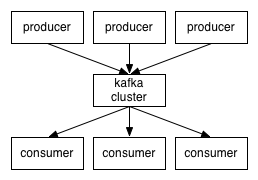
The documentation shows quite a simple initial picture, which quite the same for all the messaging systems:
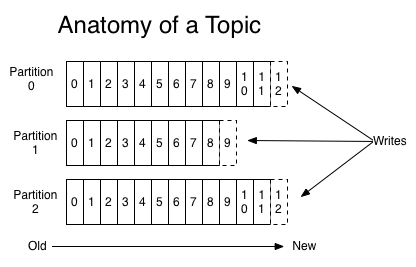
The things getting more interesting with partitioned topics
where Producers have to select to which partition they write at each time.

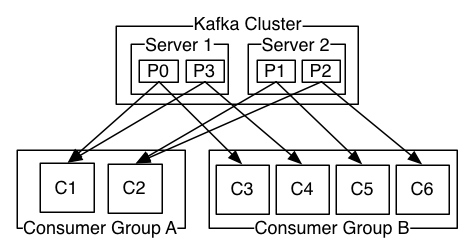
Kafka adds new Consumer Group concept.
Consumers in the same group are granted to work in queuing mode, i.e. the message delivered to consumer A in this group won't be delivered to consumer B in the same group. The same message is "broadcasted" to different consumers groups.
And this quote came to me quite surprising:
Kafka is able to provide both ordering guarantees and load balancing over a pool of consumer processes. This is achieved by assigning the partitions in the topic to the consumers in the consumer group so that each partition is consumed by exactly one consumer in the group. By doing this we ensure that the consumer is the only reader of that partition and consumes the data in order. Since there are many partitions this still balances the load over many consumer instances. Note however that there cannot be more consumer instances than partitions.

One partition = one consumer, # partitions >= # consumers.
And this is because the order of messages is granted within a partition, but not at the topic level. So actually a partition is kind of a "unique single consumer [sub]topic".

Knowning  that Kafka was initially developed at LinkedIn it is actually not that surprising -

The original use case for Kafka was to be able to rebuild a user activity tracking pipeline as a set of real-time publish-subscribe feeds. This means site activity (page views, searches, or other actions users may take) is published to central topics with one topic per activity type.

Kafka FAQ says on that:
How do I choose the number of partitions for a topic?
There isn't really a right answer, we expose this as an option because it is a tradeoff. The simple answer is that the partition count determines the maximum consumer parallelism and so you should set a partition count based on the maximum consumer parallelism you would expect to need (i.e. over-provision). Clusters with up to 10k total partitions are quite workable. Beyond that we don't aggressively test (it should work, but we can't guarantee it).
Here is a more complete list of tradeoffs to consider:
  • A partition is basically a directory of log files.
  • Each partition must fit entirely on one machine. So if you have only one partition in your topic you cannot scale your write rate or retention beyond the capability of a single machine. If you have 1000 partitions you could potentially use 1000 machines.
  • Each partition is totally ordered. If you want a total order over all writes you probably want to have just one partition.
  • Each partition is not consumed by more than one consumer thread/process in each consumer group. This allows to have each process consume in a single threaded fashion to guarantee ordering to the consumer within the partition (if we split up a partition of ordered messages and handed them out to multiple consumers even though the messages were stored in order they would be processed out of order at times).
  • Many partitions can be consumed by a single process, though. So you can have 1000 partitions all consumed by a single process.
  • Another way to say the above is that the partition count is a bound on the maximum consumer parallelism.
  • More partitions will mean more files and hence can lead to smaller writes if you don't have enough memory to properly buffer the writes and coalesce them into larger writes
  • Each partition corresponds to several znodes in zookeeper. Zookeeper keeps everything in memory so this can eventually get out of hand.
  • More partitions means longer leader fail-over time. Each partition can be handled quickly (milliseconds) but with thousands of partitions this can add up.
  • When we checkpoint the consumer position we store one offset per partition so the more partitions the more expensive the position checkpoint is.
  • It is possible to later expand the number of partitions BUT when we do so we do not attempt to reorganize the data in the topic. So if you are depending on key-based semantic partitioning in your processing you will have to manually copy data from the old low partition topic to a new higher partition topic if you later need to expand.
Kafka invests a great deal of energy in keeping the messages ordered exactly like they were sent out by producers. It looks like if your system is not sensitive to the exact order of the messages (e.g. handles some events, and it does not care too much about which event came before because they anyway got their own timestamps) Kafka could introduce unnecessary complexity compared to traditional message brokers. From the other hand, Kafa excels in managing high TPS volumes, so if you plan to run more than e.g. 5K msg/sec you probably have no choice but stick to Kafka.

In addition to messaging, Kafka (like any other broker of course) can be used for centralized logs collection. The idea is that an application sends its log lines to Kafka instead of writing it on the disk.
There is log4j for Kafka connector which easily allows that (note this config Q&A). This architectural pattern works particularly well when you deal with cloud-based systems, and especially if you work with AWS spot instances that can die before you got a chance to access any local log file.

Latest stable Kafka release at the time of writing is 0.8.2.2. I am going to install it on my VirtualBox Ubuntu 14.04 LTS VM and run a single broker to try Consumer and Producer code with it.
Default Kafka server listens on port 2181. Let's add Port Forwarding  to my VM as described here (we'll need to shutdown the machine prior to changing VirtualBox VM Settings).

Very important: Update your hosts file (C:\Windows\System32\drivers\etc\hosts) with the line like this:
127.0.0.1    ubuntuVM
where ubuntuVM stands for the name of your VirtualBox machine' hostname. If you won't do it your Windows Kafka clients will not be unable to resolve "ubuntuVM" name coming back from Kafka server on your VirtualBox. Without log4j switched on it looks like the call to synchromous calls to Producers and Consumers block. Wityh log4j you see that they actually run in the endless loop of exceptions / failures.

When the VM is restarted let's create a dedicated user for Kafka broker:

sudo useradd kafka -m
sudo passwd kafka

And now add it to sudoers

sudo adduser kafka sudo
su - kafka

Go to the Mirrors page and select the binary, then run wget, e.g.:

wget http://apache.mivzakim.net/kafka/0.8.2.2/kafka_2.11-0.8.2.2.tgz
tar -xvf kafka_2.11-0.8.2.2.tgz
cd kafka_2.11-0.8.2.2

I want to make a few changes to the default Kafka broker configuration in
/config/server.properties
First, I want to set
num.partitions=512
(instead of the default 1), so I will be able to run up to 512 consumers simulatenously .
Next, I am looking to manipulate topics programmatically, so I am adding
delete.topic.enable=true
to the "Server Basics" section (like suggested here).
Save the file

If you do not have Java installed yet you can follow this post to manually install Oracle JDK. Otherwise, we are good to continue. Start ZooKeeper instance via supplied script:


bin/zookeeper-server-start.sh config/zookeeper.properties

and start Kafka broker in another terminal window

bin/kafka-server-start.sh config/server.properties

To make sure we got everything working let's open MS "cmd.exe" and type there

telnet localhost 2181

we should be now connected to our Kafka broker. Disconnect / close "cmd.exe".

Next, let's open yet another (3-rd) terminal window and make sure we can create a topic and listen to it with a consumer, provided "in the box":

bin/kafka-topics.sh --create --zookeeper localhost:2181 --replication-factor 1 --partitions 1 --topic test


bin/kafka-console-consumer.sh --zookeeper localhost:2181 --topic test --from-beginning

Now it is the time to start developing some Java code to try our own Producer. Note that since version 0.8.2 Kafka introduces new clients API, and the new KafkaProducer class is the first step to better clients.
Maven dependency for pom.xml is as follow:
 
<dependency>
    <groupId>org.apache.kafka</groupId>
    <artifactId>kafka-clients</artifactId>
    <version>0.8.2.2</version>
</dependency>

It is important to properly initialize log4j so if Kafka client library throws some errors you at least can see them.
You can add
-Dlog4.configuration=file:/...
option to your run time


(IntelliJ sample where to add log4j config file name in IDE)

and the config file can look e.g. this way:

log4j.rootLogger=debug, stdout, R
log4j.appender.stdout=org.apache.log4j.ConsoleAppenderlog4j.appender.stdout.layout=org.apache.log4j.PatternLayout
# Pattern to output the caller's file name and line number.log4j.appender.stdout.layout.ConversionPattern=%5p [%t] (%F:%L) - %m%n
log4j.appender.R=org.apache.log4j.RollingFileAppenderlog4j.appender.R.File=example.log
log4j.appender.R.MaxFileSize=100KB# Keep one backup filelog4j.appender.R.MaxBackupIndex=1
log4j.appender.R.layout=org.apache.log4j.PatternLayoutlog4j.appender.R.layout.ConversionPattern=%p %t %c - %m%n


This simple Producer test should now work:

import java.util.Properties;
import java.util.concurrent.ExecutionException;

import org.apache.kafka.clients.producer.KafkaProducer;
import org.apache.kafka.clients.producer.ProducerConfig;
import org.apache.kafka.clients.producer.ProducerRecord;
import org.apache.kafka.common.serialization.StringSerializer;

/** * An example using the new java client Producer for Kafka 0.8.2 * * 2015/02/27 * @author Cameron Gregory, http://www.bloke.com/ */public class KafkaTest {
    public static void main(String args[]) throws InterruptedException, ExecutionException {
        Properties props = new Properties();
        props.put(ProducerConfig.BOOTSTRAP_SERVERS_CONFIG,"localhost:9092");
        props.put(ProducerConfig.VALUE_SERIALIZER_CLASS_CONFIG,StringSerializer.class.getName());
        props.put(ProducerConfig.KEY_SERIALIZER_CLASS_CONFIG,StringSerializer.class.getName());

        KafkaProducer producer = new KafkaProducer(props);

        boolean sync = true;
        String topic="test";
        String key = "mykey";
        String value = "myvalue";
        ProducerRecord producerRecord = new ProducerRecord(topic, 0, key, value);
        if (sync) {
            producer.send(producerRecord).get();
        } else {
            producer.send(producerRecord);
        }
        producer.close();
    }
}
 
If all the setting are fine we will see
myvalue
message in our consumer running in the VirtualBox. Our Windows-based Kafka Producer sent a message to VirtualBox-installed Kafka server and VirtualBox-installed Consumer got it! Now we can go wild and develop better Producer and Consumers on Windows vs. VirtualBox Kafka server.

However, the real deal is writing a good Consumer.  And this is because Kafka very much differes from e.g. RabbitMQ. A RabbitMQ consumer which just connects to a topic will get the first message, than the next one and so on. Two connected RabbitMQ consumers will get messags in the round-robin manner.

Kafka consumers are different. First, there are two types of consumers: "high-level" and "simple". Next, the High Level consumer, which is the simpliest Kafka consumer implemenattion is not set to get "old" messages that were published to the topic prior its run.

So if you want to follow RabbitMQ consumers behavior, i.e. start reading messages that were published on the topic everytime the consumer starts you have no choice but looking into the "simple consumer".

Kafka is written in Scala and I found ConsoleConsumer which is provided as a part of Kafka packages and behaves exactly like I wanted, reading the topic from the beginning. I added Scala 2.11.7 to my ItelliJ project (right-click on project, "Add Framework Suport...", then do teh same on the module where you want Scala), created a new Scala script file and copied the code there to see how it runs. Oops...

Error:scalac: Error: object VolatileByteRef does not have a member create
scala.reflect.internal.FatalError: object VolatileByteRef does not have a member create
    at scala.reflect.internal.Definitions$DefinitionsClass.scala$reflect$internal$Definitions$DefinitionsClass$$fatalMissingSymbol(Definitions.scala:1186)
    at scala.reflect.internal.Definitions$DefinitionsClass.getMember(Definitions.scala:1203)
    at scala.reflect.internal.Definitions$DefinitionsClass.getMemberMethod(Definitions.scala:1238)
    at scala.tools.nsc.transform.LambdaLift$$anonfun$scala$tools$nsc$transform$LambdaLift$$refCreateMethod$1.apply(LambdaLift.scala:41)
  [...]
    at sbt.compiler.AnalyzingCompiler.compile(AnalyzingCompiler.scala:41)
    at org.jetbrains.jps.incremental.scala.local.IdeaIncrementalCompiler.compile(IdeaIncrementalCompiler.scala:29)
    at org.jetbrains.jps.incremental.scala.local.LocalServer.compile(LocalServer.scala:26)
    at org.jetbrains.jps.incremental.scala.remote.Main$.make(Main.scala:62)
    at org.jetbrains.jps.incremental.scala.remote.Main$.nailMain(Main.scala:20)
    at org.jetbrains.jps.incremental.scala.remote.Main.nailMain(Main.scala)
    at sun.reflect.NativeMethodAccessorImpl.invoke0(Native Method)
    at sun.reflect.NativeMethodAccessorImpl.invoke(NativeMethodAccessorImpl.java:62)
    at sun.reflect.DelegatingMethodAccessorImpl.invoke(DelegatingMethodAccessorImpl.java:43)
    at java.lang.reflect.Method.invoke(Method.java:497)
    at com.martiansoftware.nailgun.NGSession.run(NGSession.java:319)


Further more, even this HelloWorld sample

object HelloWorld {
  def main(args: Array[String]) {
    println("Hello, world!")
  }
}
 
compiles, but fails to run with a similar error. It took me sometime to recognize that my Kafka libraries are compiled with Scala 2.10 while I run IntelliJ with Scala 2.11.7 - and this what actually caused the trouble! Once I changed my Maven dependencies from Kafka_2.10 to Kafka_2.11

<dependency>
    <groupId>org.apache.kafka</groupId>
    <artifactId>kafka_2.11</artifactId>
    <version>0.8.2.2</version>
</dependency>


the HelloWorld sample started to run showing the expected output:

Hello, world!
Process finished with exit code 0


and I was able to run the ConsoleConsumer as well.

Another finding is that Kafka_2.10 Consumer can not get early messages from Kafka_2.11 server, even when this is the same 0.8.2.2 Kafka version. Something goes wrong with

ZkUtils.maybeDeletePath(a_zookeeper, "/consumers/" + a_groupId);


when 2.10-0.8.2.2 Consumer attempts to read historical messages from 2.11-0.8.2.2 server.
Also, it is mandatory to specify
 
props.put("auto.offset.reset", "smallest");
 
in order to get already stored messages from the beginning of the queue. Two above lines do all the magic, allowing the Consumer to read the previous messages. Here is a sample Java code for the High Level Kafka Consumer which reads all historical messages, just like ConsoleConsumer.scala does (works):

import kafka.consumer.ConsumerConfig;
import kafka.consumer.ConsumerIterator;
import kafka.consumer.KafkaStream;
import kafka.javaapi.consumer.ConsumerConnector;
import kafka.utils.ZkUtils;

import java.util.HashMap;
import java.util.List;
import java.util.Map;
import java.util.Properties;

public class KafkaBasicConsumerTest {

    public KafkaBasicConsumerTest() {
    }

    public void run( String a_zookeeper, String a_groupId, String a_topic){
        Properties props = new Properties();
        props.put("zookeeper.connect", a_zookeeper);
        props.put("group.id", a_groupId);
        props.put("auto.offset.reset", "smallest"); // start reading from the beginning
        props.put("zookeeper.session.timeout.ms", "4000");
        props.put("zookeeper.sync.time.ms", "2000");
        props.put("auto.commit.interval.ms", "500");
        ConsumerConfig consumerConfig = new ConsumerConfig(props);

        ConsumerConnector consumer = kafka.consumer.Consumer.createJavaConsumerConnector( consumerConfig);
        ZkUtils.maybeDeletePath(a_zookeeper, "/consumers/" + a_groupId);

        Map topicCountMap = new HashMap();
        topicCountMap.put(a_topic, 1);
        Map>> consumerMap = consumer.createMessageStreams(topicCountMap);
        List> streams = consumerMap.get(a_topic);
        KafkaStream stream = streams.get(0);

        ConsumerIterator it = stream.iterator();
        while(it.hasNext())
            System.out.println( "Received Message: " + new String(it.next().message()));
    }


    public static void main(String[] args) {
        KafkaBasicConsumerTest consumer = new KafkaBasicConsumerTest();
        consumer.run( "127.0.0.1:2181", "test-group",  "test");
    }
}

Of course there is no errors handling, no proper shutdown and no multithreading. It all should be added to a HL Kafka Consumer once you move on.

It is important to understand the following:
Kafka requires the Consumers to manage what they already read  / consume and what they did not. Zookeper helps in storing the last read offset for each Consumers Group (i.e. for HL Consumers). If the Consumer [Group] never accessed a topic it got no previous offset there and, unless a special magic happens, can not see the messages the Producers sent there. However, if a certain Consumer [Group / HL Consumer] has accessed the topic at least once Zookeper saves its offset and the Consumer will be feeded with all the messages the Producers sent when the Consumer[Group] was offline at the next time the Consumer[Group] connects to the topic.